
Almost every week, someone on an independent music forum asks some version of the same thing: the file is 300 DPI, so why is DistroKid flagging it as low resolution? It's a common misunderstanding, and it catches self-released musicians as well as designers who rarely work in the digital chain. The 300 DPI figure comes from print, it applies badly to screens, and distributors don't look at it. To place the 300 DPI album cover question within a full approach to designing a record cover, you first need to know what DPI measures.
DPI is a label, not a resolution
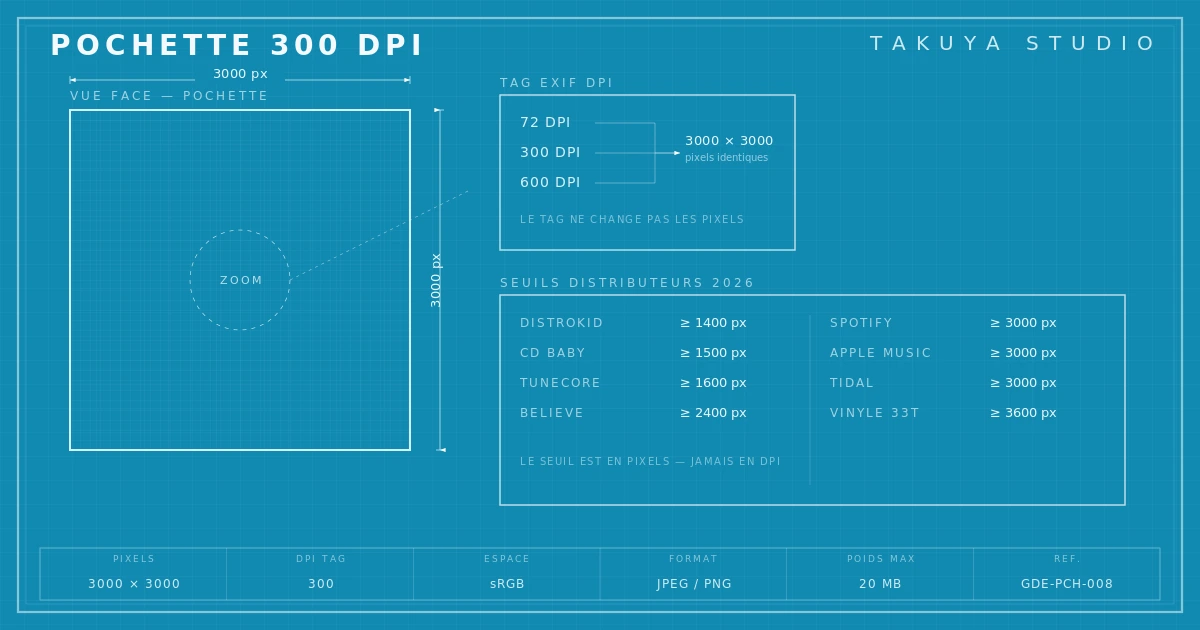
DPI, for dots per inch, describes print density on a physical medium. A "300 DPI" file holds no more pixels than a "72 DPI" one. The value is an instruction to a printer about how many dots to lay down per inch of paper. A 1000 × 1000 pixel JPEG is 1000 × 1000 pixels whether its EXIF tag says 72, 300 or 600 DPI.
This surprises people, and it explains most of the warnings. An artist with a cover exported at 1500 × 1500 pixels and 300 DPI believes the file is "high resolution". What they rarely realize is that distributors' checks only look at the number of pixels per side. On streaming, the pixel is the only unit that counts, and the DPI tag is ignored.
Why distributors show a low-resolution warning
When DistroKid, TuneCore, CD Baby or Believe display "Low resolution", they aren't commenting on the DPI tag. They're telling you the pixel count is below their threshold. And those thresholds are set in pixels. DistroKid requires at least 1400 pixels per side. Spotify and Apple Music ask for 3000 pixels minimum for an official release. An 800 × 800 pixel file will be rejected or flagged, even with a "300 DPI" tag.
The gap is easiest to see with consumer tools. A Canva export at default settings often lands around 1080 × 1080 pixels, fine for Instagram and not enough for a demanding distributor. A cover made with generative AI often comes out at 1024 × 1024 or 1536 × 1536 pixels, still short of the 3000 required. Re-saving it with a "300 DPI" tag in Photoshop doesn't add a single pixel.
Where the confusion comes from
It dates from the print era. In the 1990s, a designer delivering a CD cover supplied a 12 × 12 cm file at 300 DPI, about 1417 × 1417 pixels. 300 DPI was a professional rule then, the minimum density for a sharp print. The figure settled into musicians' vocabulary as shorthand for "pro-quality file", with no distinction between the digital tag and the image's real size.
With streaming, print stopped being the main use. Covers show up on every kind of screen, and the inch lost all meaning. Spotify prints nothing. Apple Music prints nothing. Yet the "300 DPI" reflex hangs on, which is how an artist ends up delivering a file tagged 300 DPI that is too small in pixels. DistroKid's official documentation puts the emphasis squarely on pixels and mentions DPI only in a side note.
Turning a "low resolution" cover into an accepted file
If you get the warning, the first question isn't how to reach 300 DPI. It's whether the file is at least 3000 × 3000 pixels. Open it in any image editor (Photoshop, Affinity, GIMP, Photopea) and check Image Size. The two values that matter are width and height in pixels. Everything else is secondary.
If the file is under 3000 pixels, you have two options. The better one is to find the high-resolution source, the original file from the designer or the generation tool, and export it properly. The riskier one is to upscale by interpolation with an AI tool such as Topaz Gigapixel AI or an open-source equivalent. These tools rebuild plausible pixels. The result is often convincing on photographic images and far less reliable on typographic compositions, where letters can blur or warp.
Real distributor thresholds in 2026
DistroKid accepts files from 1400 pixels but recommends 3000. CD Baby asks for 1500 minimum, TuneCore 1600, Believe 2400. Spotify, Apple Music and Tidal require a strict 3000 pixels; below that, the file is rejected or replaced with a placeholder. For a 12" vinyl, pressing plants usually ask for 3600 pixels minimum, enough to cover 31.5 cm per side at a true 300 DPI print. There, DPI matters again, because this time it's print.
The rule is simple. For digital, think in pixels. For print, think in centimeters and DPI. The confusion persists because both units sit side by side in the same software menus, and the interface doesn't tell you which context you're in. A well-prepared streaming file is 3000 × 3000 pixels, sRGB, JPEG or PNG, under 20 MB. The DPI tag can read 72 or 300; online, it makes no difference.
Preparing your cover so it's never rejected
The safest method is to set the dimensions when you create the file, not when you export it. Open a 3000 × 3000 pixel canvas from the start. Work in sRGB. If you use an AI tool, pick a model or workflow that outputs 3000 or 4096 pixels per side directly; most professional services allow it now. If you work with a designer, tell them it's for streaming before they start, so they set up the right canvas size.
For projects that combine streaming and a physical pressing, keep two files: a TIFF master at 3600 × 3600 pixels, CMYK, 300 DPI for the printer, and a JPEG derived from it at 3000 × 3000 pixels, sRGB, for distributors. The International Color Consortium provides the standard ICC profiles for the conversion. Keeping the two apart avoids back-and-forth and delays.